Import & Trim
By the end of this lesson you will know how to bring a video into CapCut and cut out the parts you do not want — the two most important skills in video editing.
Start a new project
Open CapCut and tap the big "+" button. Your phone gallery will open. Select one video clip — start with something short, under 30 seconds. Tap "Add" to bring it into the editor. You will see your video appear in the timeline at the bottom of the screen. The timeline is the strip showing your video. All editing happens here.
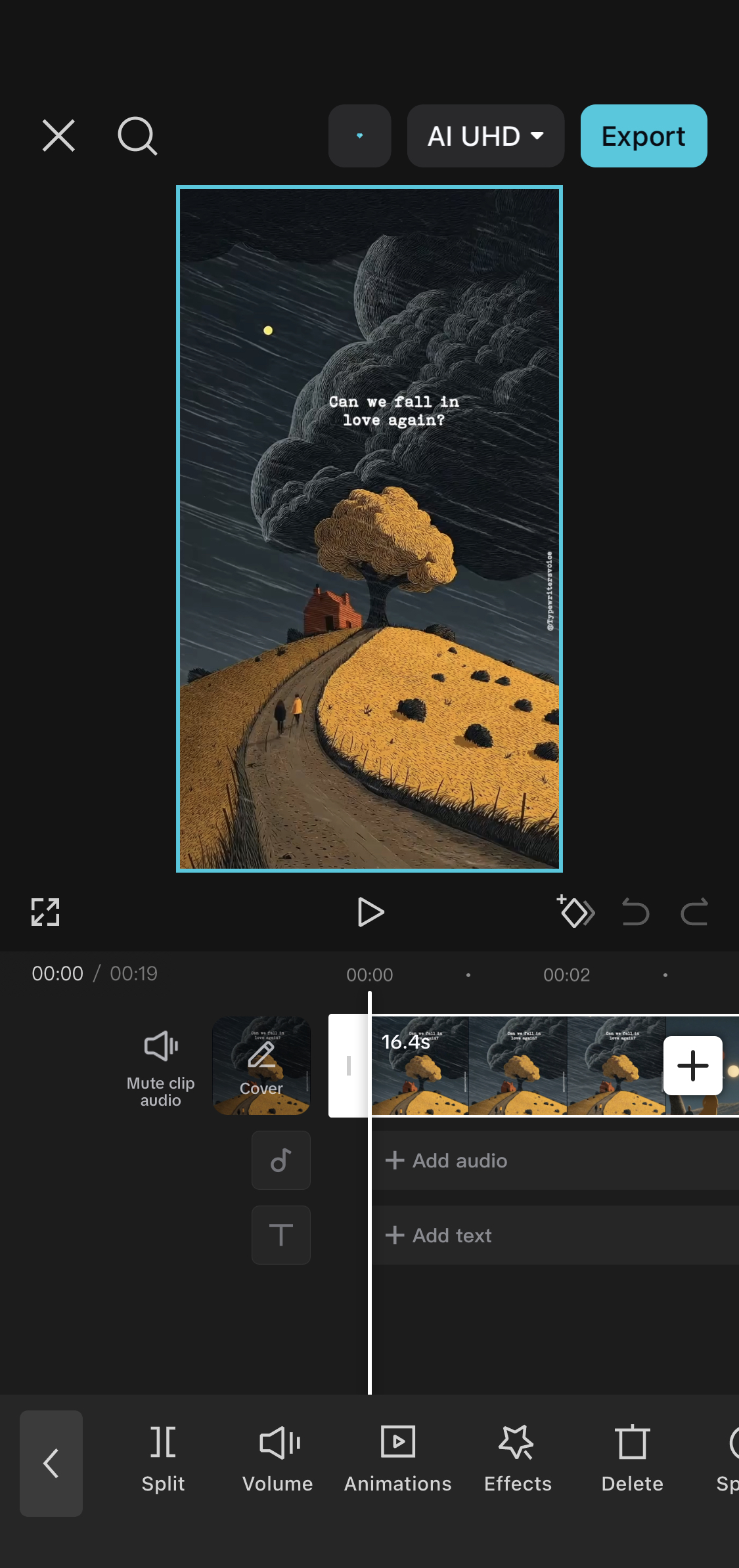
Split to remove unwanted parts
Watch your video by tapping the play button. Find a part you want to cut out — maybe a boring moment at the beginning, or someone walking into the frame. Move the white line (playhead) to where you want to cut. Tap "Split" in the toolbar. Your video is now in two pieces. Tap the piece you want to delete. Tap "Delete". The unwanted section is gone. Do this as many times as needed.
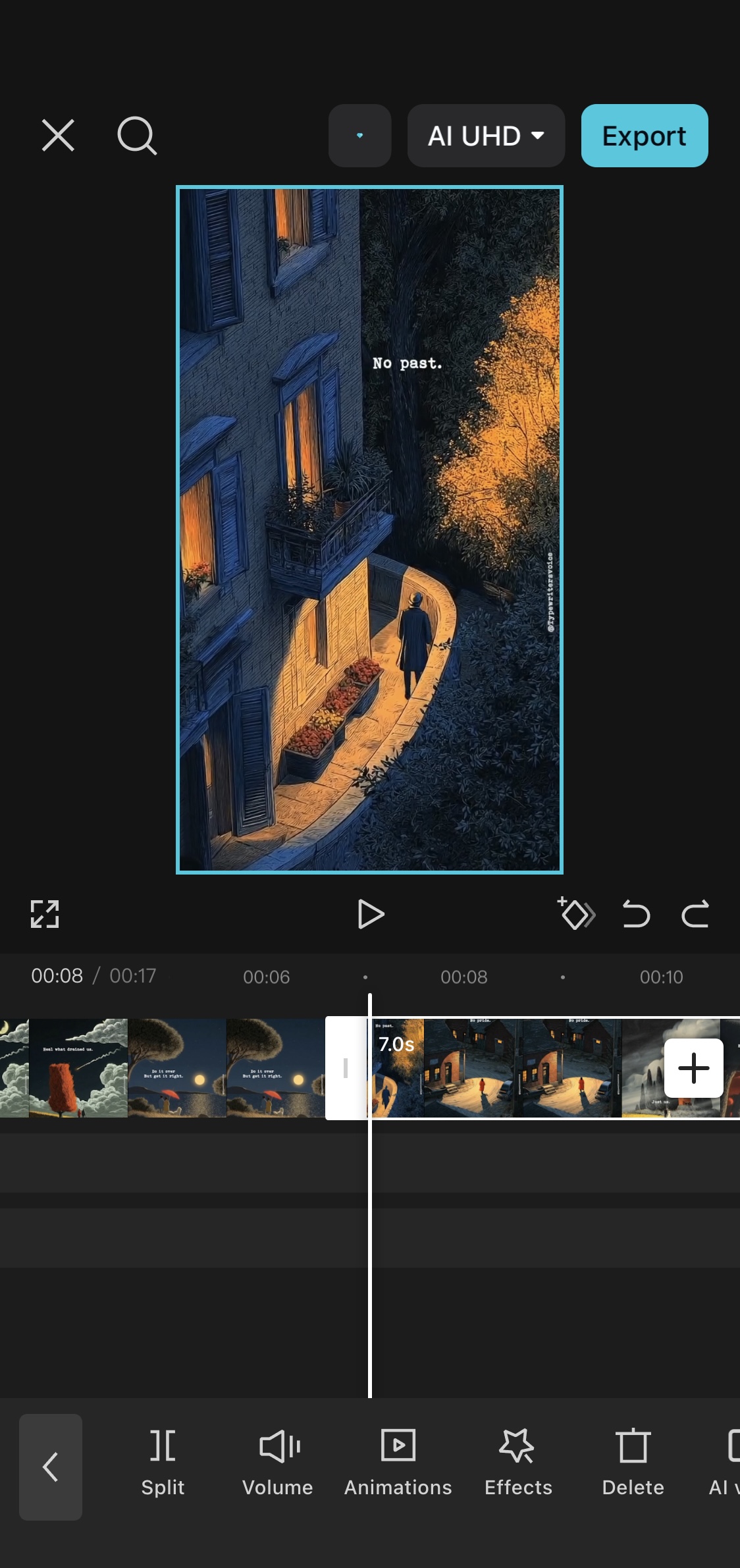
Trim the beginning and end
Tap on your video clip in the timeline. You will see white handles appear on both sides. Drag the left handle to the right to trim the beginning. Drag the right handle to the left to trim the end. This removes the dull parts at the start and finish that every phone video has — the few seconds of looking at the ground before you point the camera up.
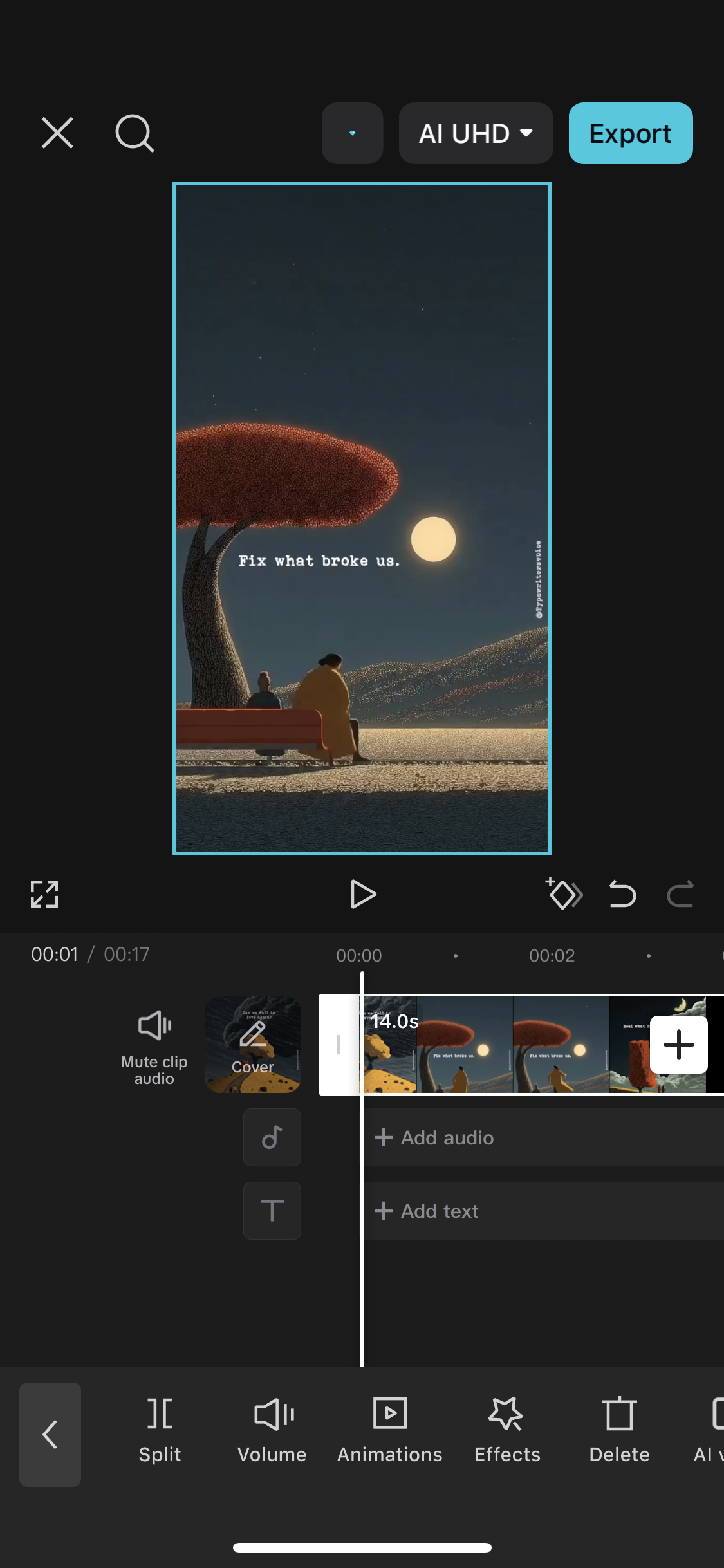
Export your edited video
When you are happy with your trim, tap the arrow icon at the top right to export. Choose 1080p resolution — this is the standard for social media. CapCut will process and save the video to your phone's gallery. The whole export usually takes under 30 seconds for a short clip.
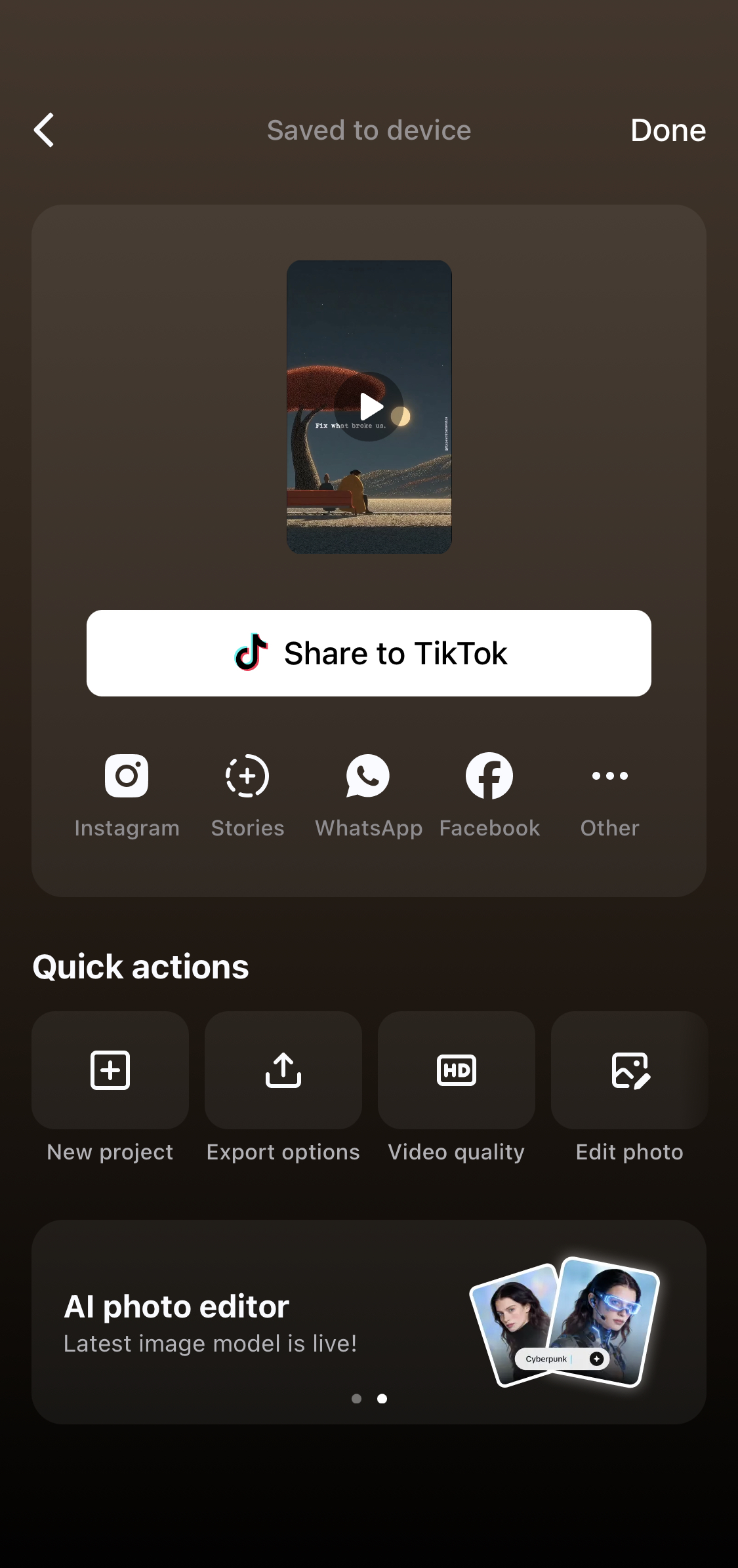
Record a 20-second video of anything around you right now — your room, your street, your school compound. Import it into CapCut. Trim the first 3 seconds and the last 3 seconds. Export it. You have just edited a video.